What to Know About HP Laptop Battery Replacement
February 12, 2025Laptop batteries are crucial for the portability and functionality of devices. Whether you’re working on the go, studying at a coffee shop, or watching your favorite shows, a reliable laptop battery ensures you stay efficient and entertained without constantly searching for a power outlet.
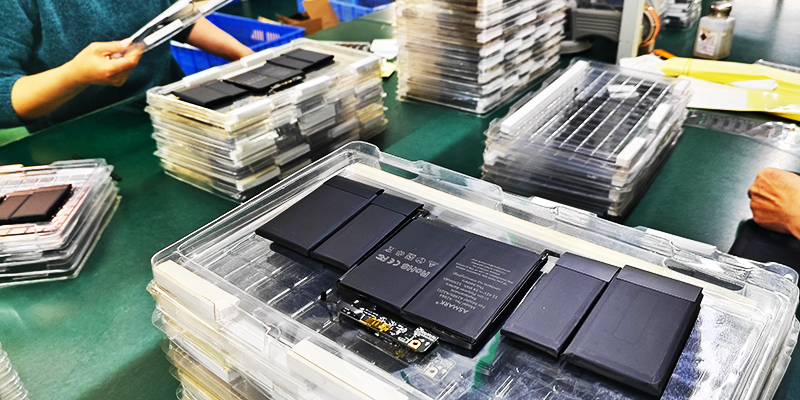
Like all rechargeable batteries, laptop batteries have a limited lifespan and typically last for 2-4 years or 300-500 charging cycles. By proper maintenance, you can maximize battery performance and delay the need for battery replacement. Here are some feasible tips to extend the lifespan of laptop batteries and keep them running smoothly.
1.Avoid extreme temperatures
Extreme temperature is one of the most harmful environments for laptop batteries. High temperature will accelerate the chemical reactions inside the battery, leading to a faster decline in battery performance, while low temperature will temporarily reduce battery capacity.
Tip: Please use the laptop in an environment with moderate temperature (50 ° F to 95 ° F or 10 ° C to 35 ° C).
Measure: Place the laptop on a hard, flat surface to ensure proper airflow and avoid obstructing ventilation.
2.Smart charging
Proper charging habits are crucial for extending the lifespan of laptop batteries. Overcharging or frequently depleting the battery completely may damage the battery.
Tip: To achieve optimal performance, please keep the battery level between 20% and 80%.
Measure: Use a reliable charger that meets the specifications of your laptop to avoid overvoltage or undercharging.
3.Use power-saving function
Modern laptops are equipped with a built-in power-saving mode designed to reduce energy consumption and extend battery life.
Tip: When using battery power, please activate “power-saving mode” or similar settings.
Measures: Adjust screen brightness, turn off Bluetooth and Wi Fi when not in use, and disable background applications to save energy.
4.After fully charging, unplug the power supply
Keeping the laptop plugged in after charging to 100% can cause trickle charging, which over time generates heat and puts pressure on the battery.
Tip: After the battery is fully charged, please disconnect the laptop from the charger.
Measure: Set reminders or use software tools to notify you when the battery level reaches 80-90%.
5.Avoid frequent complete discharge
Lithium ion batteries are commonly used in laptops, and their performance is best if they are fully discharged irregularly. Frequent deep discharge will shorten its service life.
Tip: Try to avoid letting the laptop’s battery level drop to 0% as much as possible.
Measure: Charge the battery when the battery level reaches around 20-30% to prevent battery damage.
6.Update your laptop software
Keeping the laptop’s operating system and drivers up to date can optimize power management features and improve battery efficiency.
Tip: Enable automatic updates for your operating system.
Measure: Regularly check for updates to laptop firmware and battery management software.
7.Store the battery correctly when not in use
If you plan to store your laptop for a long time, proper battery maintenance is crucial.
Tip: Store laptop batteries with a charging capacity of approximately 50% in a cool and dry place.
Measure: Avoid storing fully charged or fully discharged batteries for extended periods of time.
8.High performance activities that limit the use of battery power
Tasks such as gaming, video editing, or running resource intensive software can quickly deplete battery power and generate heat, leading to battery wear and tear.
Tip: Use this type of application when plugging in your laptop.
Measure: For daily tasks, switch to energy-efficient applications and browsers to reduce battery pressure.
9.Occasionally calibrate the battery
Battery calibration helps laptop systems accurately estimate the remaining battery level. Although calibration is not as necessary for modern lithium-ion batteries as with old technologies, occasional calibration is still beneficial.
Tip: If the battery percentage reading of your laptop is inaccurate, please calibrate it every 2-3 months.
Operation: Fully charge the battery, then discharge it completely, and continuously charge it to 100%.
10.Timely replace aging batteries
Batteries nearing their lifespan may overheat, leak, or damage components of laptops. Timely replacement of batteries can ensure safety and sustained performance.
Tip: Monitor the health status of laptop batteries through diagnostic tools or software.
Measure: Choose a high-quality replacement battery that is compatible with your laptop model.
11.Use original or certified replacement batteries
When replacement is required, please choose original equipment manufacturer (OEM) batteries or certified third-party alternatives. Low quality alternatives may damage your laptop and provide below standard performance.
Tip: Purchase batteries from suppliers with good reputation and high customer ratings.
Measure: Avoid using counterfeit or generic batteries that lack quality control and safety certification.
12.Develop a regular maintenance plan
Regular cleaning and maintenance of your laptop can indirectly benefit the battery by ensuring efficient operation.
Tip: Clean the ventilation ducts and fans to prevent overheating.
Measure: Use a soft cloth to remove dust and ensure smooth air circulation around the laptop.
By following these tips, you can extend the lifespan of your battery, which not only saves the cost of frequent battery replacement but also reduces electronic waste. A well maintained battery can improve the overall performance of a laptop, ensuring maximum returns on your investment.