The Best Secret to Extending Laptop Battery Life
November 30, 2024
Should laptops be plugged in all the time?
March 25, 2025Replacing a laptop battery can feel overwhelming, especially if you’re unsure which model is compatible with your HP notebook. A mismatched battery can harm your device or even pose safety risks. This guide simplifies the process, helping you find the right battery quickly and confidently.
Step 1: Identify Your HP Laptop Battery Compatibility
The first (and most critical) step is to confirm your laptop’s exact model. HP uses unique identifiers for each device, which are essential for compatibility. Here’s how to find it:
1. Check the Bottom Case
Flip your laptop over and look for a sticker or engraved text. Most HP laptops display the model number in formats like:
HP Pavilion 15-eg0023nr
HP EliteBook 840 G7
HP ENVY x360 13-ay0000
2. Use System Information (Windows)
Press `Win + R`, type `msinfo32`, and hit Enter.
Under System Model, you’ll see your laptop’s exact name (e.g., HP Spectre x360 Convertible 14-ef0xxx).
3. Check the Original Battery
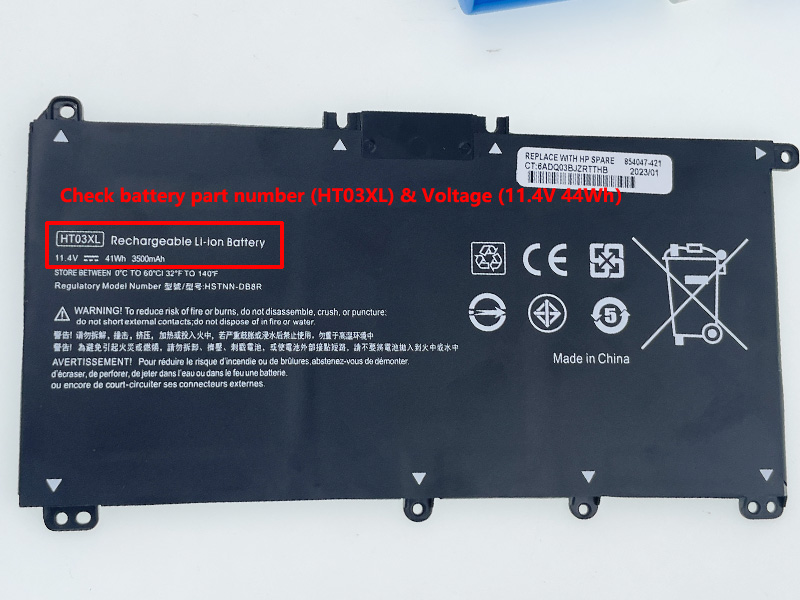
If your old battery is still accessible, remove it and look for labels. Most HP batteries list compatible models (e.g., Compatible with HP 15-dw, 17-cn, etc.).
You can check the serial number printed on the label on the back of the battery. The serial number will be a combination of more prominent letters and numbers. (e.g., HP battery part number (HT03XL) & Voltage (11.4V 44Wh))
If the above methods still do not work, you can seek help from our online customer service. We are committed to providing high-quality and low-priced laptop batteries for wholesalers and repair shops.
Step 2: How to Install the New Laptop Battery
1. Power Off & Unplug: Shut down your laptop and disconnect the charger.
2. Remove the Old Battery:
For removable batteries: Slide the release latch and lift the battery out.
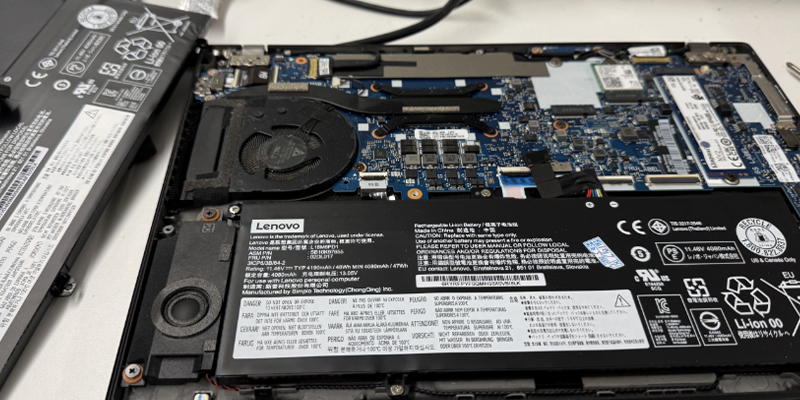
For internal batteries (common in newer models): Open the back panel with a screwdriver, disconnect the battery cable, and gently pry it out.
3. Install the New Battery:
Align the connector and press firmly until it clicks.
Reattach the back panel (if applicable).
4. Calibrate the Battery (Optional):
– Charge to 100%, then drain it to 0% to reset the battery meter.
Maintenance Tips to Extend Battery Life
1. Avoid Extreme Temperatures: Don’t leave your laptop in a hot car or freezing environment.
2. Partial Charging: Keep the battery between 20–80% for daily use.
3. Unplug When Fully Charged: Prevent overcharging by disconnecting the charger.
4. Store Properly: If unused for months, charge to 50% and power off.
laptop battery FAQs
Q: Can I use a higher-capacity battery than the original?
A: Only if it’s explicitly compatible. A higher mAh/Wh battery may last longer but could be thicker or heavier.
Q: How long do HP laptop batteries last?
A: Typically 2–4 years (300–500 cycles). Heavy usage or extreme conditions may shorten lifespan.
Q: Is a swollen battery dangerous?
A: Yes! Stop using it immediately and replace it. Swelling indicates internal damage and fire risk.
By following these steps, you’ll ensure a safe, long-lasting battery replacement tailored to your HP laptop.