How To Replace The Correct Battery
April 27, 2025
Rattling Noise From Computer While Charging?
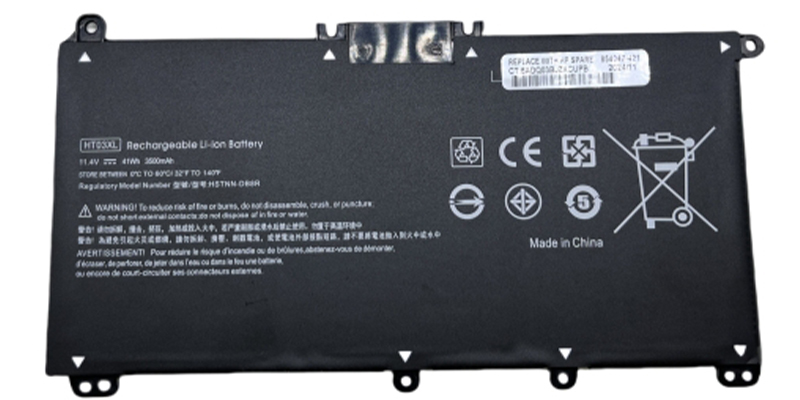
May 7, 2025In the morning ordered a cup of coffee to open the laptop is about to work, found that the computer has no power, this situation is really too bad. Battery as one of the core components of the notebook, its life expectancy directly affects the device’s endurance and experience. Understand how to check HP laptop battery life, and master the science of laptop battery maintenance skills, you can effectively extend the life of the battery, enhance work efficiency. The following will detail the method of checking HP laptop battery life and practical suggestions for extending HP battery life.
一、How long is the average HP laptop battery life?
HP laptop battery life is determined by many factors, including brand quality, frequency and mode of use, hardware configuration and maintenance.
Brand quality: the original HP battery in the product design and manufacturing process will pay close attention to quality control, will use materials that can extend the life of laptop batteries.
Frequency and manner of use: Run your computer in a sensible manner and do not use it in environments where the temperature is too high and too low. The optimal ambient temperature range for laptop batteries is 15°C to 25°C. Using your laptop within this temperature range ensures that the performance and life of the battery will not be negatively affected.
Hardware configuration: usually use the computer when it is best to buy a computer bracket is conducive to computer cooling, do not run for a long time the computer native can not withstand the high load of plug-ins.
Maintenance: Clean the radiator and fan regularly and take care of your computer the right way.
二、How are HP batteries calculated for life?
Charge Cycle: Calculated based on the number of charge cycles. A charge cycle means completing a 100% discharge to charge process.
For example: the first time you use the battery 70% of the charge, fully charged, and then used 10%, and then plugged in fully charged, and then finally 20% of the electricity, fully charged before the completion of a battery charging cycle, the general laptop batteries are able to support more than 500 times the charging cycle. Laptop computers in use, there are no more than three states:
Connected to the power supply when the battery is fully charged: when the battery is fully charged, we use the charger to connect to the operation, the power used is from the DC output, and will not go through the computer’s built-in battery, so there is basically no effect on the battery!
Connecting to a power source when not fully charged: The computer will still be powered by an external power source, and will not be “charging and playing” like a cell phone, which is much more costly. Only the external power supply will be charging the battery at the same time as powering the computer, and this charging process is also considered a battery loss.
Not connected to the power supply only using the battery to use: When the notebook is fully powered by the battery, the battery is involved in the power supply, and the use of the battery will be counted into the battery charging cycle, this time, the battery is depleted.
三、How to check HP laptop battery life?
- Viewed through the operating system’s own functions
HP notebook users can use the Windows system built-in battery report function to detect the battery status. The specific operation is as follows:
- Press Windows + X and select “Command Prompt (Administrator)” or “Windows PowerShell (Administrator)”.
- Enter the command: powercfg /batteryreport
- The system will generate a battery report (battery-report.html file), which can be viewed in a browser for detailed information, including the battery design capacity, full charge capacity, cycle counts, and so on.
- With third-party battery monitoring software
In addition to system tools, battery status can be more accurately monitored using third-party specialized software, for example:
- BatteryBar
- HWMonitor
- EaseUS Battery Monitor
These software can display the health of the battery (Health), the number of charge times, and the remaining service life in real time, helping the user to detect the problem and maintain it in time.
四、Ways to Maintain HP Laptop Battery Life
Master the scientific and reasonable use and maintenance methods, can effectively extend the battery life. The following practical advice for HP notebook users:
- Avoid overcharging and discharging: Keeping the battery in the 20%-80% range is ideal. Keeping the battery fully charged or exhausted for a long period of time will accelerate the aging of the battery.
- Adjusting screen brightness and power settings: Reducing screen brightness according to the day’s weather and setting hibernation and sleep modes reasonably can effectively reduce battery consumption. For example, turn on the Windows “Energy Saving Mode” to let the system automatically optimize energy consumption according to the usage status.
- Turn off unnecessary background programs and hardware: Turn off other apps and other software in time when not in use to avoid unnecessary battery consumption. At the same time, regularly clean up programs running in the background to reduce the burden on the system.
- Store unused batteries correctly: If the laptop is not used for a long period of time, the battery should be charged to between 40% and 60% and stored in a dry and cool place. Charge the battery every 3 months or so to keep it active.
五、Kind tips
After reading this entire blog I believe you have mastered how to check HP laptop battery life and learned useful tips to extend battery life. Good battery maintenance not only improves the battery life of your laptop, but also extends the overall life of your device.
If you want to know more tips on maintaining laptop lithium batteries, you can leave a message on the backend of our website, and we will continue to share more practical information with you!