Difference Between Original And Oem Batteries
April 25, 2025
How to Extend Hp Laptop Battery Life?
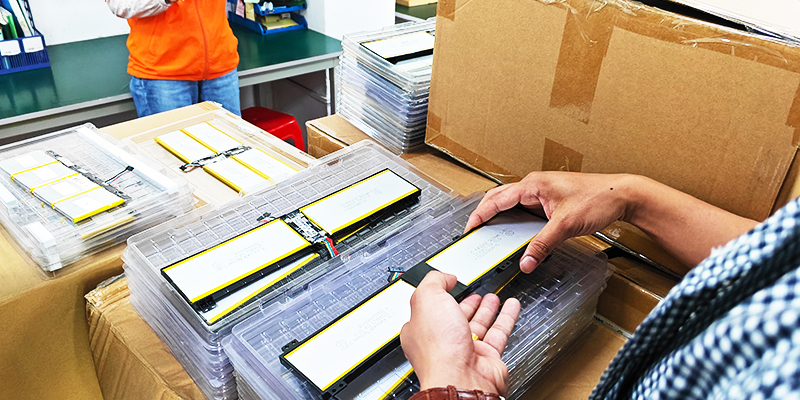
April 29, 2025The company’s laptop computer belongs to the fixed assets, with the growth of the laptop battery use time this fixed asset will be depleted, the most obvious feature is that the battery will appear battery aging, battery life decline and other common problems, the more serious, there may also be a battery bulge, these cases do not rush to change the computer equipment, only need to replace the battery in the laptop can reduce the company’s asset expenditures.
A battery replacement before the preparatory work
Before replacing the battery, you need to make the following preparations:
- Shut down the computer: the computer is completely shut down, and unplug the power adapter and all external computer devices (such as USB, HDMI).
- Prepare tools: screwdriver, plastic pry bar, tweezers, anti-static bracelet (optional).
- Purchase a suitable new battery: Confirm in advance that the battery model is compatible with the original computer to ensure safe power-on
Laptop Battery Replacement Steps
- Remove the back cover of the laptop
- Use a screwdriver to remove all the screws on the back of the computer.
- Use a tool to gently pry open the back cover and remove it to avoid scratching the case.
- Remove the old battery
- Locate the battery’s connecting cable and use tweezers to gently disconnect and clear the cable.
- Pay special attention to the need to slowly push out the old battery to avoid scratching the motherboard or damaging components.
- Install the new battery
- Clean the battery compartment with a cleaning tool to ensure that it is free of dust and debris.
- Gently place the new battery into the battery compartment in the correct direction.
- Connect the wires to ensure good contact; tighten the screws, if any.
- Put back the back cover and fix
- Put back the back cover and tighten all the screws sequentially with a screwdriver.
- Power on test
- Plug in the power adapter and power on the device to check if the battery is recognized normally.
- Observe whether the battery can be charged and whether the power display is accurate.
Precautions when replacing the battery
Hold the battery gently during the replacement process to avoid damaging the computer motherboard by pulling the battery or connecting cable strongly.
- If the battery has bulging, leakage and other phenomena, it is strictly prohibited to continue to use.
- It is recommended to wear an anti-static bracelet to avoid static electricity damage to the motherboard.
- Built-in battery models are not recommended to replace by yourself, it is recommended to contact the official after-sales or professional maintenance personnel.
Frequently Asked Questions and Answers
Question 1: What should I do if I can’t charge a new battery?
There are several troubleshooting steps you can try:
Check the power supply and charger
- Make sure the power pass-through adapter is not damaged and check that the charger plug and cable are intact and not damaged.
Check the battery connections
- If the battery is removable, turn off the laptop and safely remove the battery.
- Check the battery connections for looseness or contamination, clean the connections and reposition the battery in the correct installation orientation.
Calibrate the Battery
- Fully deplete the battery until it shuts down automatically, followed by another full charge to 100% to help recalibrate the battery.
Check Battery Health Status
- If none of the above steps solves the problem, the battery itself may be faulty, contact a professional to check the motherboard or battery circuit.
Problem 2: The computer will not turn on after replacing the battery?
The possible causes and solutions are as follows:
Battery installation problem:
- Confirm whether the battery is installed correctly. For notebook computers, usually the positive and negative terminals of the battery need to be placed correctly. If the battery has poor contact or is not installed correctly, it may result in the computer not being able to power on.
Power Connection Problems:
- Check that all power cords are energized and the power outlet has power. If the laptop is powered externally, make sure the power adapter is not damaged and is properly connected to the computer and the power outlet.
Clear CMOS:
- Sometimes you may need to reset the BIOS after replacing the battery, you can restore the BIOS to default settings by clearing the CMOS. Most motherboards have jumpers or buttons to clear CMOS, please refer to your motherboard manual for details.
Hardware Connection Check:
- Make sure all internal hardware (e.g. memory sticks, hard disks, graphics cards, etc.) are properly installed and securely connected. Loose hardware connections may cause the computer to fail to boot up properly.
Monitor and Keyboard:
- If the computer boots up but there is no display, check that the power and cable connections to the monitor are correct. Make sure the keyboard is connected correctly, as some computers may not boot without a keyboard. 6.
Listen for startup sounds:
- Listen carefully and attentively to the sounds the computer makes during startup. Different buzzer sounds can indicate different hardware problems. If you hear a series of beeps, the probability is that there is a memory problem; if there are no beeps, it is most likely a motherboard or CPU or keyboard problem.
Check peripherals:
- Unplug all external devices (e.g. USB devices, expansion cards, etc.) and restore the computer to its most basic configuration to start the computer. If it can start, the problem may be with one of the peripherals, after which you can add peripherals one by one to rule out which device is causing the problem.
Problem 3: Short battery life and fast power loss?
- Turn off unnecessary app notifications: Turn off notifications for all apps except essential apps to reduce power consumption and also protect the environment.
- Turn off the self-start function of the application: you can turn off those infrequent use of self-start function in the background of the computer in the settings, so as to avoid consuming unnecessary power.
- Adjust the screen brightness: download the eye protection software, the software can adjust the screen brightness according to the environment, but also to protect the eyes which can significantly reduce power consumption.
- Check network usage: Try to use Wi-Fi network and reduce the use of mobile data, which usually consumes more power.
- Regularly clean up background apps: Regularly clean up apps running in the background, especially those that are unnecessary, to reduce their drain on battery power.
Question 4: What is battery calibration? How does it work?
Battery calibration helps the system to accurately display the power level and extend the battery life. The steps are as follows:
- Fully charge and then let the battery discharge until the device shuts down automatically, then recharge it to recalibrate the battery level display.
Question 5: How can I tell if the battery needs to be replaced?
It can be considered based on the following key signs:
Battery Appearance Inspection:
- If the battery appears to be distorted by bulging or leaking liquid, it is usually a sign of battery damage and should definitely be replaced.
Abnormal charging time:
- If the battery charging time is abnormal, such as a sudden shortening or lengthening of the charging time, this may be a sign of declining battery performance.
Significant decrease in range:
- If the range of the laptop battery is significantly reduced, this indicates that the battery may have been aged or damaged.
Increased frequency of charging:
- If a single charge previously lasted several days, but now requires more frequent charging, this may also be a sign of declining battery performance.
Battery life:
- Batteries have a life expectancy of between 2 and 3 years, if the battery has been in use for close to or longer than this, replacement should also be considered.
Question 6: Can non-original batteries be used?
It can be used, but you need to pay attention to:
- Battery quality and compatibility:
- Non-original batteries may be of varying quality, and some may be refurbished or low-quality products, which may lead to unstable battery performance or even damage to the original computer equipment.
- If the battery does not match the voltage and current specifications of the computer, long-term use may result in shorter battery life or unstable performance.
- System Stability and Safety:
- Using non-original batteries may cause system instability, such as easy shutdown or crash. In addition, non-original batteries may not meet the water and dust resistance standards for computer batteries, increasing the safety risk.
- Economic Considerations:
- Original batteries are usually reasonably priced and come with additional warranties. In contrast, third-party batteries may cost less but do not necessarily offer the same warranty.
Question 7: Does replacing the battery affect the warranty?
If the laptop is still under warranty If the laptop is still under warranty and the battery is faulty, it is recommended to contact the manufacturer’s official after-sales service for battery replacement. Replacing the battery by yourself may void the warranty. Therefore, it is better to have the battery replaced or repaired by the official during the warranty period to maintain the original warranty rights.
Warm Tips
Whether you are using an HP, Dell, Lenovo or other brand notebook computer, you can complete the operation safely and efficiently by following the correct battery replacement process and precautions. If you still have questions about battery replacement, we recommend contacting a professional technician or official after-sales service.