How to Choose a Safe Laptop Battery
May 30, 2025Why does “Battery not detected” appear?

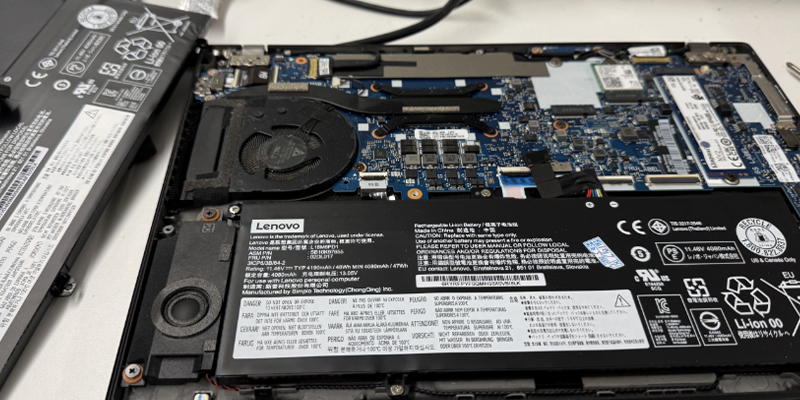
Check the battery: Physically verify that the battery is properly installed in the laptop. Make sure the data lines are properly connected. Sometimes the battery may be loose or not fully inserted due to vibration or improper operation. Just follow the instructions in the manual to remove the battery and install it correctly.
Battery Driver: The battery driver is an important software for the computer to recognize and manage the battery. If the driver is outdated or corrupted, it may cause the computer to fail to detect the battery. Visit your laptop manufacturer’s official website to download and install the latest battery driver. Once the installation is complete, restart the computer and check if the problem is resolved.
Faulty charger: The power adapter is an important device that connects the power source to the laptop. If the power adapter is malfunctioning, it may result in the battery not charging properly, and then the computer will mistakenly determine that it is not present. Check whether the output voltage and current of the power adapter meet the requirements, and whether the plug and socket are in good contact.
Hardware aging: If none of the above methods can solve the problem, then the hardware of the laptop may be faulty. For example, the battery management chip on the motherboard may have problems. At this point, it is recommended to contact a professional maintenance personnel for inspection and repair.
Perform a power management reset
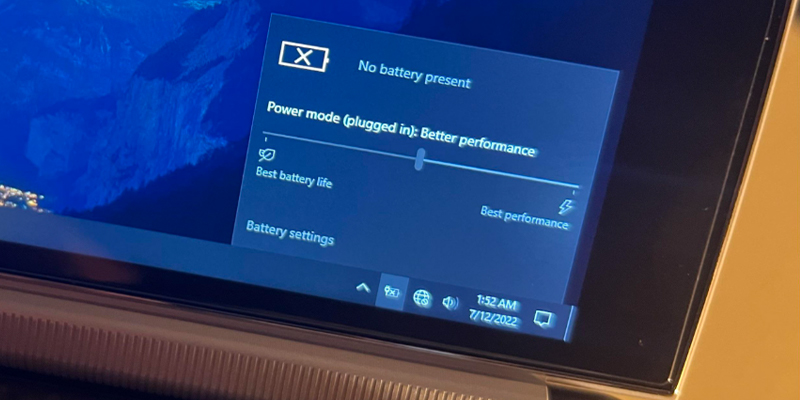
Abnormal power management settings on your laptop can also cause “Battery not detected” problems.
The steps are as follows:
- Turn off the laptop battery first
- Unplug the power adapter and remove the battery (for removable models).
- Check the battery and connections to make sure there is no dust and that it is energized.
- Reinstall the battery properly according to the instructions.
- Reboot the computer and see if the problem is solved.
- If it is an internal battery, it is recommended that this be done by a professional.
Update Battery Drivers
Sometimes laptops don’t charge properly due to problems with the drivers, especially the battery management drivers.
How to update the driver:
- Right-click on “This computer” in the lower left corner of your desktop, and select “Manage”.
- Go to Device Manager, find the “Battery” category, click to expand it.
- Right click on the “Microsoft ACPI-Compliant Control Method Battery” driver and select “Update Driver”.
- Once the update is complete, restart your laptop to see if the problem is solved.
Check the power adapter

Check these areas:
Check the plug and interface: check the plug and device interface of the power adapter for looseness, deformation, oxidation or damage. If the plug is loose, it may lead to poor contact and affect charging or power supply; deformed interfaces may not be able to plug into the device properly or may easily fall off during use.
Check the power cord: Observe whether the power cord is broken, fractured, aged or the outer skin is peeling off. If the power cord has these problems, it may cause the internal wires to be exposed, posing a safety hazard and also affecting the transmission of current.
Observe the adapter shell: Check the adapter shell for cracks, deformation, burn marks or bulging. These phenomena may be caused by damaged internal components, overheating, etc. If you find any abnormality in the shell, it means that the adapter may have been damaged.
How to maintain computer battery capacity
Avoid overcharging: Do not leave your computer connected to the power supply for a long time. When the battery is full, it is recommended to unplug the power adapter to avoid accelerating the aging of the battery by leaving it in a fully charged state for a long time. If you need to use the computer for a long time, charge the battery to about 80% before unplugging it.
Calibrate the battery regularly: Perform a battery calibration every few months by fully discharging the battery to 0% and then fully charging it again, which will ensure more accurate battery readings and enable the battery management system to work better.
Use original charger: Try to use original charger to charge your laptop as much as possible, because the voltage and current of non-original chargers may not match, which accelerates battery aging and poses a safety risk.
Avoid high and low temperatures: High and low temperatures can accelerate battery aging. Try to avoid using your laptop in direct sunlight or for long periods of time in cold environments, the ideal temperature for use is around 20°C.
Keep well ventilated: When using a computer, make sure there is enough space around the computer to dissipate the heat and avoid overheating the computer which will affect the battery life.